
Your brain is terrible at storage. It's brilliant at connections, patterns, creativity, ideas in the shower at 2am. But ask it to reliably hold onto that article you read three weeks ago, or that insight from a meeting you definitely meant to write down? Forget it.
For me it's especially acute. I have ADHD, and before and after my diagnosis I knew the only way I'd remember most things is to write them down and review them later. Neurospicy brains are wild. I'll forget something 30 seconds after it happens, but I'll remember a completely useless detail from 1997 in perfect clarity. So I leave nothing to chance. If it matters, it gets written down.
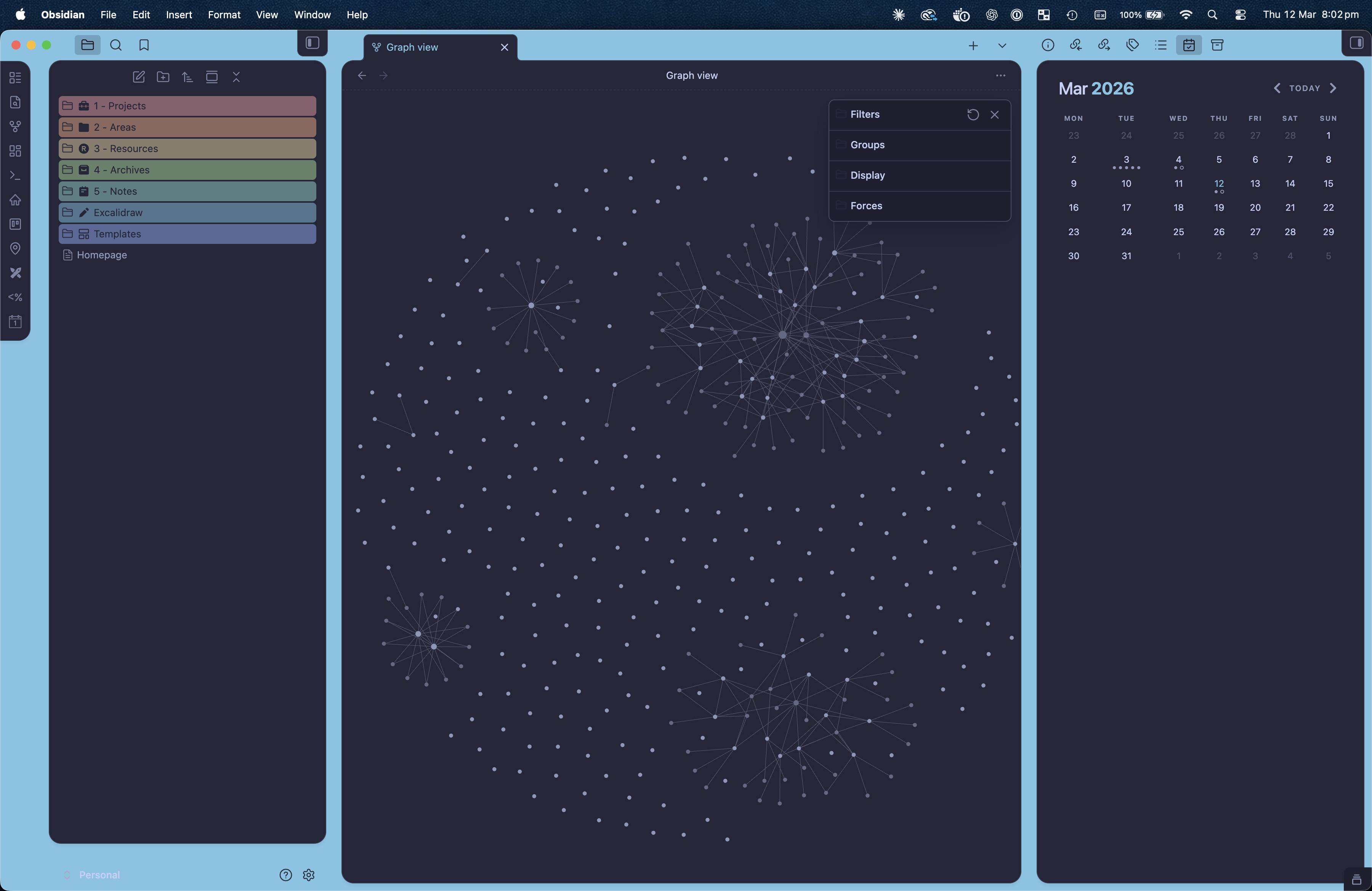
That's the problem this guide is trying to solve. What follows is my personal setup for a second brain, built in Obsidian and structured around Tiago Forte's PARA method. It's not theoretical. It's the actual vault, plugins, templates and configuration I use every day.
Start small: There are a million ways to configure Obsidian. Using another person's setup robs you of the learning. Start with little to no plugins so you get a feel for the ecosystem. And if obsessing over your note-taking setup isn't your thing, there's no shame in using Apple Notes, Notion, or anything else that works.
Why bother, and where this comes from
Most people are drowning in information they can't find when they need it. Bookmarks that go nowhere. Notes scattered across five apps. Screenshots you'll never look at again. The volume of stuff we consume keeps growing, and our ability to retrieve any of it stays roughly the same.
A second brain fixes that. Stop trying to remember things and start building a system that does it for you. Get the right information out of your head and into a trusted, searchable, organised place so your mental energy can go toward actually doing things with it.
The system here is built on two books by Tiago Forte. Building a Second Brain is the big picture: how to capture, organise, and retrieve information without relying on memory. The PARA Method is the practical companion, a simple four-category system that works across any platform with minimal maintenance.
Obsidian is the tool I landed on because it keeps everything local, works in plain Markdown, and syncs beautifully over iCloud. No subscriptions, no vendor lock-in, no data sitting on someone else's server.
This guide is opinionated. It's my setup. Take what works, leave what doesn't.
The PARA method
PARA is four categories. Everything you save goes into one of them.
| Letter | What it is | How to use it |
|---|---|---|
| Projects | Things you're actively working on right now | Only current, actionable work lives here |
| Areas | Roles and responsibilities you maintain over time | Health, finances, job responsibilities, anything ongoing |
| Resources | Topics or interests useful in the future | Research, articles, ideas not tied to a specific project |
| Archives | Finished or inactive items from the other three | Clean it up, move it here, stop letting it clutter your active work |
Organised by actionability, not topic. When you need something, you know roughly where it lives. When something's done, it gets archived rather than deleted.
If you want a head start, the PARA Starter Kit for Obsidian is worth exploring. It's a full example vault you can poke around in.
There is a very real danger in downloading and using another person's pre-made Obsidian setup. Say you download a zip file, it has an insecure or malicious plugin — this could be disastrous for your security.
Verify, make sure you trust the person, but it's likely a good idea to just copy the same setup and verify the plugins you add as you go along.
The tool: Obsidian
Obsidian stores notes on your device in plain Markdown. No proprietary format, no cloud dependency. You can read every file in any text editor. It works offline. And it syncs across devices via iCloud for free.
Installing Obsidian
- Download from obsidian.md/download
- Open Obsidian and create a new vault
- Give it a name and pick where to save it
Syncing with iCloud
- On macOS: System Preferences → Apple ID → iCloud → iCloud Drive
- On iOS: Settings → [Your Name] → iCloud → iCloud Drive
- Create your vault inside the iCloud Drive folder, or move an existing one there
Everything syncs automatically across Mac, iPhone and iPad.
Theme and plugins
The theme
I'm using AnuPpuccin. It's clean, customisable, and looks genuinely good in both light and dark mode.
To install it, go to your themes folder (.obsidian/themes) and run:
git clone https://github.com/AnubisNekhet/AnuPpuccin.gitThen in Obsidian: Settings → Appearance → change the theme to AnuPpuccin.
Style settings
Install the Style Settings plugin, then go to Settings → Style Settings → Import and paste the following config. This is my exact setup, tweak it however you like.
{
  "anuppuccin-theme-settings@@anp-header-color-toggle": true,
  "anuppuccin-theme-settings@@anp-header-margin-toggle": true,
  "anuppuccin-theme-settings@@anp-header-divider-color-toggle": true,
  "anuppuccin-theme-settings@@anp-decoration-toggle": true,
  "anuppuccin-theme-settings@@anp-autohide-titlebar": false,
  "anuppuccin-theme-settings@@anp-hide-status-bar": false,
  "anuppuccin-theme-settings@@anp-tooltip-toggle": false,
  "anuppuccin-theme-settings@@anp-color-transition-toggle": true,
  "anuppuccin-theme-settings@@anp-button-metadata-toggle": false,
  "anuppuccin-theme-settings@@anp-kanban-lanes": true,
  "anuppuccin-theme-settings@@anuppuccin-theme-light": "ctp-latte",
  "anuppuccin-theme-settings@@anuppuccin-theme-dark": "ctp-macchiato",
  "anuppuccin-theme-settings@@anuppuccin-theme-accents": "ctp-accent-sapphire",
  "anuppuccin-theme-settings@@anp-active-line": "anp-current-line",
  "anuppuccin-theme-settings@@anp-custom-checkboxes": true,
  "anuppuccin-theme-settings@@anp-speech-bubble": true,
  "anuppuccin-theme-settings@@anp-callout-color-toggle": true,
  "anuppuccin-theme-settings@@anp-codeblock-numbers": true,
  "anuppuccin-theme-settings@@anp-codeblock-wrap-edit": "anp-codeblock-edit-nowrap",
  "anuppuccin-theme-settings@@anp-codeblock-wrap-preview": "anp-codeblock-preview-nowrap",
  "anuppuccin-theme-settings@@anp-codeblock-wrap-hl-preview": "anp-codeblock-preview-hl-nowrap",
  "anuppuccin-theme-settings@@anp-list-toggle": true,
  "anuppuccin-theme-settings@@anp-table-toggle": true,
  "anuppuccin-theme-settings@@anp-table-width": true,
  "anuppuccin-theme-settings@@anp-canvas-dark-bg": true,
  "anuppuccin-theme-settings@@anp-colorful-frame": true,
  "anuppuccin-theme-settings@@anp-colorful-frame-icon-toggle-light": false,
  "anuppuccin-theme-settings@@anp-colorful-frame-icon-toggle-dark": false,
  "anuppuccin-theme-settings@@anp-custom-vault-toggle": true,
  "anuppuccin-theme-settings@@anp-file-icons": true,
  "anuppuccin-theme-settings@@anp-floating-header": false,
  "anuppuccin-theme-settings@@anp-collapse-folders": true,
  "anuppuccin-theme-settings@@anp-file-label-align": "0",
  "anuppuccin-theme-settings@@anp-alt-rainbow-style": "anp-full-rainbow-color-toggle",
  "anuppuccin-theme-settings@@anp-rainbow-file-toggle": false,
  "anuppuccin-theme-settings@@anp-full-rainbow-text-color-toggle-light": false,
  "anuppuccin-theme-settings@@anp-full-rainbow-text-color-toggle-dark": false,
  "anuppuccin-theme-settings@@anp-rainbow-folder-bg-opacity": 0.5,
  "anuppuccin-theme-settings@@anp-simple-rainbow-title-toggle": false,
  "anuppuccin-theme-settings@@anp-layout-select": "anp-card-layout",
  "anuppuccin-theme-settings@@anp-bg-fix": false,
  "anuppuccin-theme-settings@@anp-hide-borders": false,
  "anuppuccin-theme-settings@@anp-card-shadows": true,
  "anuppuccin-theme-settings@@anp-card-layout-actions": true,
  "anuppuccin-theme-settings@@anp-card-layout-filebrowser": true,
  "anuppuccin-theme-settings@@anp-callout-select": "anp-callout-block",
  "anuppuccin-theme-settings@@callout-title-padding": "6px",
  "anuppuccin-theme-settings@@callout-radius": 12,
  "anuppuccin-theme-settings@@callout-title-opacity": 0.25,
  "anuppuccin-theme-settings@@anp-h1-color-custom": "anp-h1-pink",
  "anuppuccin-theme-settings@@anp-bold-custom": "anp-bold-sapphire",
  "anuppuccin-theme-settings@@anp-italic-custom": "anp-italic-yellow",
  "anuppuccin-theme-settings@@anp-highlight-custom": "anp-highlight-green",
  "anuppuccin-theme-settings@@anp-h2-color-custom": "anp-h2-mauve",
  "anuppuccin-theme-settings@@anp-h3-color-custom": "anp-h3-lavender",
  "anuppuccin-theme-settings@@anp-h4-color-custom": "anp-h4-blue",
  "anuppuccin-theme-settings@@anp-h5-color-custom": "anp-h5-sky",
  "anuppuccin-theme-settings@@anp-h6-color-custom": "anp-h6-green"
}
Plugins
Obsidian's plugin ecosystem is massive. These are the ones that made the cut for my workflow.
Must have
- Templater — create and use dynamic templates with logic, prompts, and variables
- Periodic Notes — create and manage daily, weekly, and monthly notes
- Style Settings — adjust theme, plugin, and snippet CSS variables
- Dataview — query your vault like a database; essential once your notes have metadata
Good for my workflow
- URL Into Selection — paste a URL over selected text to create a link, Notion-style
- Smart Typography — auto-converts quotes, fractions, and arrows into proper typographic characters
- Reveal Active File — automatically highlights the current file in the sidebar
- Obsidian Web Clipper — save web pages directly into your vault with one click; handy for capturing articles and references you'd otherwise bookmark and forget
Nice extras
- Excalidraw — sketch diagrams and visual notes directly in your vault
- File Hider — hide files and folders from the sidebar clutter
- Homepage — open a specific note or dashboard on startup
- Badges — add inline visual callouts and status indicators to notes
If you want to get fancy
- Copilot for Obsidian — AI assistant inside your vault; works with local LLMs so your notes stay private
Templates
Templates are where the system really starts to pay off. Rather than starting from a blank note every time, you get a consistent structure that's also fast to fill in.
Person
This one is deceptively useful. Every person I interact with regularly gets a note. The real power is the Dataview query at the bottom — it automatically lists every note that links back to this person. So when I tag someone as an attendee in a meeting note, or mention them in a project doc, it all shows up here. Over time you build up a full history: every meeting you had with them, every note you tagged them in, without any manual effort.
# Name of person
- I put notes about the person here
## Linked
```dataview
list from [[]]
```Book notes
A simple template that prompts you for the details when you create the note. Handy for tracking what you've read and surfacing books later by rating or tag.
<%*
let bookTitle = tp.file.title;
let bookAuthor = await tp.system.prompt("Author");
let bookDateRead = tp.date.now("YYYY-MM-DD");
let bookRating = await tp.system.prompt("Rating (out of 5)");
%>---
title: "<%* tR += bookTitle %>"
author: "<%* tR += bookAuthor %>"
date_read: "<%* tR += bookDateRead %>"
rating: "<%* tR += bookRating %>"
tags: book
---

# <%* tR += bookTitle %>

- **Author**: <%* tR += bookAuthor %>
- **Date Read**: <%* tR += bookDateRead %>
- **Rating**: <%* tR += bookRating %>/5

## Summary

Write a brief summary or notes about the book here.
Meeting notes
The workhorse template. Drop in the attendees as links (e.g. [[John Smith]]) and they automatically show up on each person's note via the Dataview backlink query. Action items, decisions, and follow-ups all in one place so nothing falls through the cracks.
---
title: Meeting - {{title}}
date: {{date:YYYY-MM-DD HH:mm}}
attendees:
tags: meeting
---

# Meeting: {{title}}

## Attendees
-
-

## Agenda
1.
2.

## Discussion Points
### 1. [Topic]
-

## Action Items
- [ ] Task 1 - Assigned to: @
- [ ] Task 2 - Assigned to: @

## Decisions Made
-

## Next Steps
-

## Follow-up
- Next meeting date:

---
Created: {{date:YYYY-MM-DD HH:mm}}
Daily note
This is the one I open every morning. It auto-generates breadcrumb navigation between days, weeks, and months, pulls in a random quote, and has sections for standup updates, focus items, and tasks. The Dataview task queries at the bottom surface overdue items and home tasks so nothing gets forgotten.
---
title: {{date:YYYY-MM-DD}}
date: {{date:YYYY-MM-DD HH:mm:ss}}
lastmod: {{date:YYYY-MM-DD HH:mm:ss}}
tags: daily-notes
---
# {{date:dddd, MMMM Do YYYY}}

[[{{date:YYYY}}]] > [[{{date:YYYY}}-Q{{date:Q}}|Q{{date:Q}}]] > [[{{date:YYYY-MM}}|{{date:MMMM}}]] > [[{{date:YYYY}}-W{{date:ww}}|Week {{date:ww}}]]
[[{{date-1d:YYYY-MM-DD}}|{{date-1d:dddd Do}}]] < **Today** > [[Notes/Daily/{{date+1d:YYYY-MM-DD}}|{{date+1d:dddd Do}}]]

<% tp.web.daily_quote() %>

> [!info]+
> ### Handy links

---

## Daily Focus 🎯
-

---

## Standup update
- **Yesterday**
  -
- **Today**
  -
- **Blocked**
  -

---

## Notes 📝
-

---

## Tasks from today 📅

- [x] #task

> [!DANGER]+ Overdue 📆
> ```tasks
> not done
> is not recurring
> description does not include ]]
> group by happens
> short
> ```

> [!info]+ Home Tasks 🏡
> ```tasks
> not done
> tags includes home
> short
> ```
If you are really adventurous, start creating or editing your own plugins
The two plugins I've had to patch so far have been straightforward. Obsidian plugins are just three files: main.js,
manifest.json and style.css. Edit what you need, drop them into your vault's .obsidian/plugins/plugin-name folder,
and you're done.
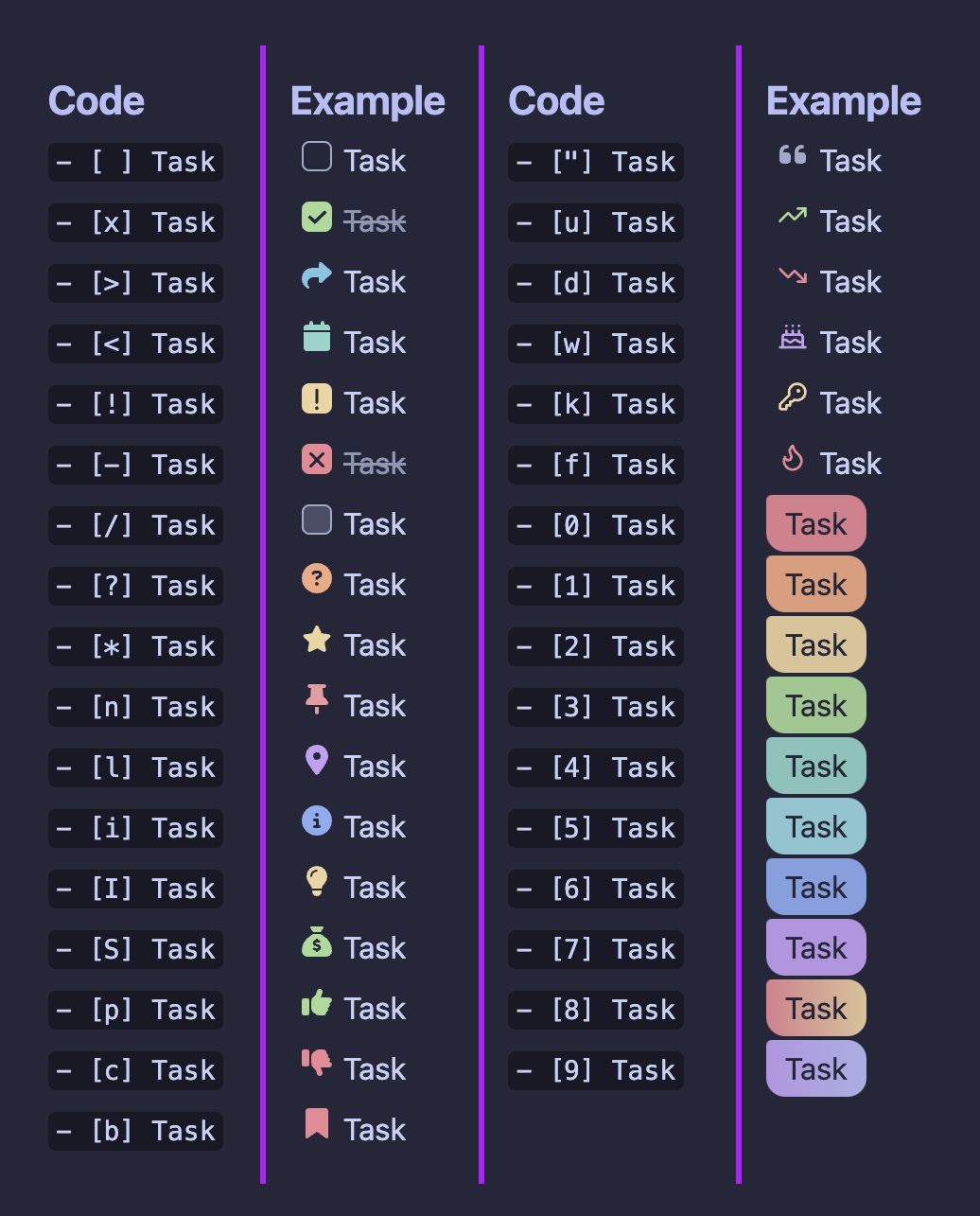
I had to fix some issues when showing more than 3 columns, and had to do some pretty aggressive styling changes to have it work with the theme I use and show the speech bubbles in columns with correct styling.
Adds per-column row height and padding controls to the local settings modal, fixes multi-column layouts breaking with 3+ columns, and improves compatibility with themes that use decorations extending beyond the content area (e.g. AnuPpuccin speech bubbles).
- Row height — Configurable row height via the local settings modal. Per-column overrides supported.
- Per-column padding — Left/right padding controls per column for themes with decorations extending beyond the content area.
- 4-column layout fix — Fixed columns overflowing with 3+ columns. Uses
calc()for resizer space. - Width calculation fix — Fixed operator precedence bug (
100 / parts.length - 1→100 / (parts.length - 1)). - AnuPpuccin compatibility — Prevented speech bubble checkboxes from being clipped inside column rows.
- Overflow fixes — Changed overflow to
visibleto prevent theme decorations from being clipped. - Auto-refresh — Settings changes take effect when the modal is closed without manual reload.
- localStorage fixes — Fixed values not clearing when emptied and consistent JSON encoding.
I love DBML for displaying and reasoning about databases. I was quite frustrated with the initial view and the zooming of this plugin, what a better way to make it better than to do it myself.
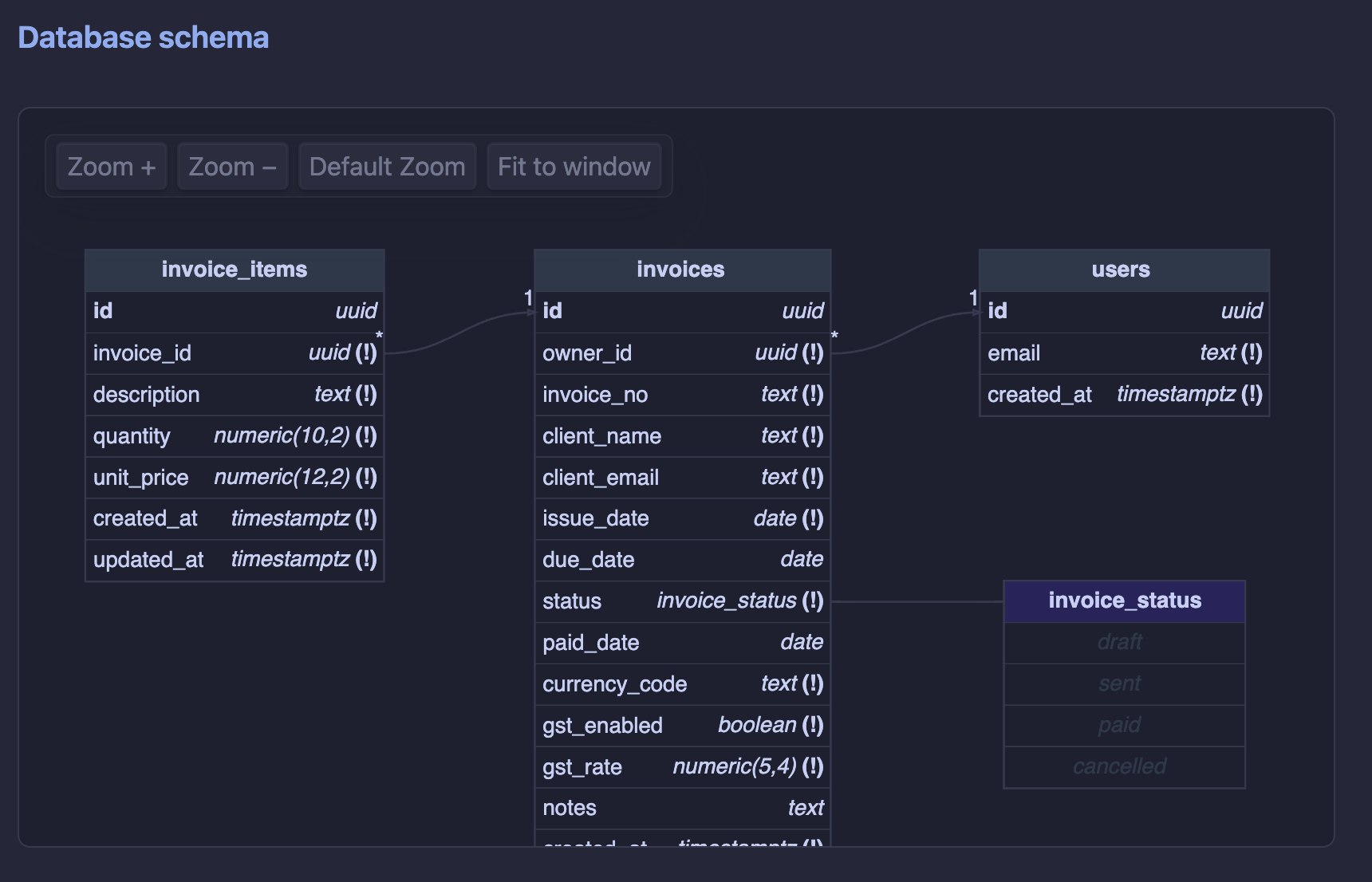
Introduces a comprehensive zoom and pan feature for DBML diagrams rendered in Obsidian, along with related UI controls and settings.
- Zoom & pan — Zoom controls (in/out, reset, fit to window), mouse wheel zoom with modifier key support, drag-to-pan, and fit-to-width-on-load.
- Settings — Exposed initial zoom, min/max zoom, zoom step, wheel zoom, modifier requirement, show/hide controls, and fit-to-width in the plugin settings tab.
- CSS — Layout for scroll area, zoom wrapper, and sticky zoom controls with transitions and panning cursor feedback.
- Dependencies — Updated to newer versions and simplified the build script to use esbuild.
One thing I haven't figured out yet: Databases
Obsidian has a native databases feature that I'm genuinely excited about but haven't had time to go deep on. The promise is basically Notion-style structured data, tables with properties, filtering, sorting, all living locally in plain files rather than on someone else's server.
I've poked at it. It works. But getting it to do what I actually want takes more than a quick session and I haven't carved out the time yet. It's high on the list.
If you're coming from Notion and miss the database views, this is worth looking into. Dataview fills a lot of that gap already with queries, but native databases could make it significantly more approachable without writing any query syntax. I'll write a proper follow-up once I've actually used it for something real.
Wrapping up
This isn't a system you set up once and forget. It grows with you. The templates get refined, the plugins change, the folder structure shifts as your life and work do. That's fine. PARA is deliberately forgiving, and Obsidian is flexible enough to bend however you need it to.
The goal was never to build the perfect second brain. It was to build one that actually gets used. Start simple, capture consistently, and trust that the structure will earn its keep over time.
If even one part of this setup saves you from that feeling of "I know I saved that somewhere", it's done its job.